
- Organize Notes, Tasks & Projects in One Place
- Create Smart Digital Notebooks for Study & Work
- Manage Meetings & Notes Like a Professional
- Access Your Notes Anytime on Any Device
- Collaborate & Share Notes with Team Members
- Save Time with Organized Workflow System
- Store Ideas, Research & Important Data Easily
- Essential Skill for Students & Office Professionals
Microsoft OneNote Training Course

Master OneNote & Organize Your Work Like a Pro
Live Online OneNote Training to Manage Notes, Tasks & Work Efficiently – Boost Your Productivity Skills
COURSE DESCRIPTION
What Is the Microsoft OneNote Training Course?
In our live OneNote Essential Training, your trainer shows you how OneNote holds notes, research, meeting records and shared project work in one place. You follow along in your own notebook during the session rather than watching a demonstration. You learn to drop screen clippings, pictures, audio, files and even handwriting into a page, then format it so the notebook stays readable a month later. After that comes the part most people never set up properly: sections, tags and search, so you can find any note in a couple of seconds. The sharing side gets its own sessions. You cover Outlook meetings and tasks, author indicators so you know who wrote what, highlighting for new content, page versions when someone overwrites your work, wiki-style links between pages, and sharing a notebook on the web with people who need it. Exercise files come with the course and stay with you afterwards, so you can rebuild anything you want more practice on. Looking for a OneNote course near you? Ours runs live and online, so there is no travel and no fixed classroom. You join the session at a set time, work in your own notebook while the trainer watches, and get your questions answered on the spot.
LiveTrainingLab OneNote Course Goals
Most people lose more time than they think to scattered notes. Half an idea in a notebook, a meeting record in email, a research link saved somewhere else. OneNote pulls all of it into one searchable place, which is why offices and universities keep asking for the skill. If you are thinking about joining our OneNote course and you are not sure what it covers or whether it suits your level, here is a plain answer. The 4-week plan runs from your first notebook through tagging, tables and pen mode to sharing and syncing, and you practise each part live with your trainer.
Here is a short walk through the course so you know what the 4 weeks actually cover.
Build Your OneNote Skills From the Ground Up
You start with the basics of notebooks, sections and pages, then move up to tagging, search, Outlook links and shared notebooks. Sessions are taught live in English or Urdu, with a practical task in each one that the trainer checks while you are still in class. Batches run at fixed times over 4 weeks, and you join from home.
Get Certified at the End of the 4 Weeks
You finish with a LiveTrainingLab certificate for the OneNote course, issued once the 4 weeks and the final work are complete. The certificate is useful, but the notebook system you set up during class is the part you carry into your job the next morning.
A notebook system you actually use at work
Exercise files from every live session
A course certificate at the end of the 4 weeks
Where OneNote Skills Get Used Every Day
OneNote earns its place wherever notes pile up. Meeting minutes that need to be found again, research for a report, class lectures, project handovers, client conversations, checklists shared with a team. Once your notebooks are set up properly, the daily half hour people lose hunting for information simply stops.
What You Will Learn in These Live Classes
- Adding content to notes, including screen clippings, images, audio, and video
- Searching notebooks
- Tagging notes
- Organizing information in notebook sections
- Working with Outlook events and tasks
- Creating tables
- Converting handwriting to typed text
- Using templates
- Printing notes and selections
- Sharing and syncing notebooks
How Our Live OneNote Classes Work
Every session is taught live by a trainer at a fixed time, with a small batch. You open OneNote on your own machine and build your notebook along with the class, so sections, tags and links get set up while somebody is there to check them. Share your screen and the trainer can see why a page will not sync or why your search is returning nothing.
Questions get answered as they come up, in English or Urdu. Each class ends with a short task, and the next one opens by looking at what you produced. Over 4 weeks that leaves you with a notebook system you actually use, not a folder of notes about notes.
Why a Live Class Beats a Recorded OneNote Course
OneNote is easy to open and easy to turn into a mess. The features are simple enough, but deciding what belongs in a section, what deserves a tag, and how a shared notebook should be laid out is where people get stuck. A video cannot look at your notebook and tell you it is going wrong.
A trainer can. You show your screen, get the structure fixed early, and build the rest on top of it. Add a fixed class time and a task somebody is waiting to see, and far more students actually reach week four.
Course Schedule
| Start Date | Time | Seats Left | Price | |
|---|---|---|---|---|
| 26-Oct-26 : Mon | 12:00 PM | 2 | 15999 Rs | Register Now |
| 27-Oct-26 : Tue | 02:00 PM | 3 | 15999 Rs | Register Now |
| 28-Oct-26 : Wed | 04:00 PM | 5 | 15999 Rs | Register Now |
| 29-Oct-26 : Thu | 06:00 PM | 4 | 15999 Rs | Register Now |
| 30-Oct-26 : Fri | 08:00 PM | 5 | 15999 Rs | Register Now |
| 31-Oct-26 : Sat | 10:00 PM | 5 | 15999 Rs | Register Now |
| 01-Nov-26 : Sun | 10:00 AM | 1 | 15999 Rs | Register Now |
We provides this course in following city of Pakistan
- Karachi
- Islamabad
- Rawalpindi
- Azad Kashmir
- Lahore
- Sialkot
- Gujranwala
- Multan
- Gujrat
- Faisalabad
- Sahiwal
and other major cities in Pakistan.


100% online courses
Start instantly and learn at your own schedule.

Flexible Schedule
Set and maintain flexible deadlines.

Learn the latest skills
with on-demand training and development programs

Shareable certificate
Earn a Certificate upon completion
Shareable on Social Media
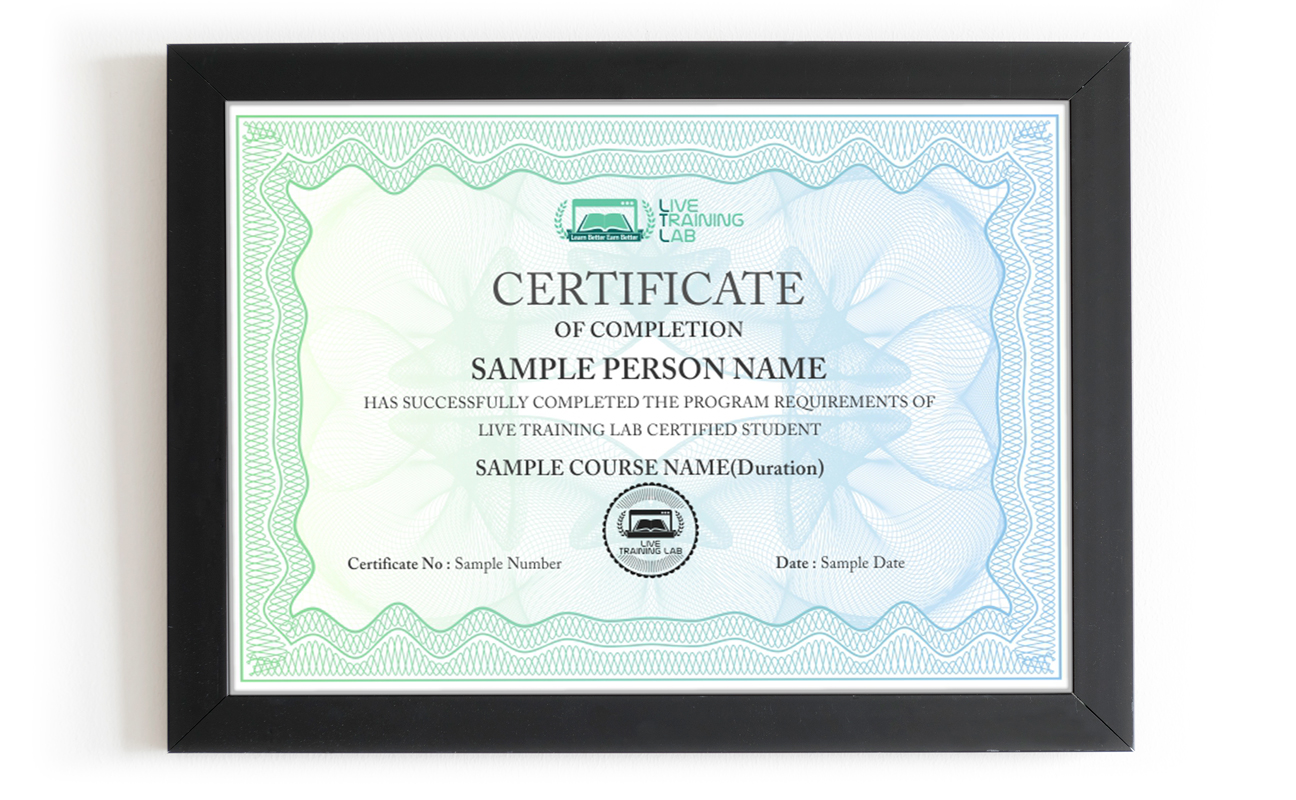
You can share your Certificate in the Certifications section of your social profile, on printed resumes, CVs, or other documents.
CURRICULUM
- Welcome
- Using the exercise files
- What is OneNote?
- Launching OneNote and touring the interface
- Opening, closing, and saving notebooks
- Creating new notebooks
- Creating, moving, and deleting sections and pages
- Working with sub-pages
- Creating a note on a page
- Working with unfiled notes
- Copying and pasting content
- Adding screen clippings
- Adding pictures
- Adding audio and video files
- Recording audio and video
- Adding files
- Adding math equations to notes
- Sending to OneNote
- Formatting text
- Using styles from the quick gallery
- Using bullets and numbering
- Checking spelling
- Organizing the user interface
- Creating new windows
- Searching a notebook
- Creating links to pages with wiki linking
- Tagging notes
- Working with sections
- Using section groups
- Inserting Outlook meetings
- Sending page information by email
- Working with Outlook tasks
- Creating a table
- Working with rows and columns
- Formatting tables and data
- Moving tables and data
- Working in Pen mode
- Manipulating written notes and drawings
- Converting handwriting to type
- Using templates
- Saving as a template
- Choosing a default template
- Setting paper size and margins
- Changing page background options
- Adding a background graphic
- Printing notes and selections
- Modifying print options
- Knowing who wrote what with author indicators
- Locating newly added content with highlighting
- Seeing past versions quickly with versioning
- Saving to other formats
- Saving OneNote content to PDF or XPS
- Creating a shared notebook
- Sharing notebooks on the web
- Inviting others and syncing notebooks
- Sending pages in various formats
- Automatically linking your notes to what you’re viewing
- Using the Research pane
- Translating text with the Mini Translator
- Setting display options
- Changing email options
- Protecting passwords
- Setting backup options
Batches, Timings and the 4-Week Plan
The OneNote course runs over 4 weeks. Week one covers the interface, notebooks, sections, pages and your first notes. Week two moves into screen clippings, pictures, audio and video, files, equations and formatting. Week three is the organising side: search, wiki links, tags, section groups, Outlook meetings and tasks, plus tables and pen mode. Week four covers templates, page setup, printing, versioning, saving to PDF, shared notebooks and syncing.
Batches run morning and evening so students and working people can both find a slot. Your timing is confirmed at enrolment, and the trainer stays reachable through the course.
Who This OneNote Course Is For
Students who take lecture notes and lose them by exam week. Office staff running meetings that need proper minutes. Project teams sharing research and handover notes. Teachers preparing lesson material. Anyone whose ideas currently live across three apps and a paper diary.
No technical background is needed. If you can type and open a file, you have enough to start week one. If you already use OneNote casually and want the sharing, tagging and Outlook side, mention it at enrolment and the early sessions get adjusted to your level.
Why Choose LiveTrainingLab for OneNote
Plenty of people try to learn OneNote from recorded videos and PDF files. It looks cheap and flexible, and then the folder sits untouched after the first week. Nobody checks your notebook, nobody points out that your sections are a mess, and there is no set day when the next lesson happens.
When we ask learners why the self-study route did not work for them, the answer is usually a version of the same thing.
Reading a PDF never built the habit. It turned into memorising steps instead of actually setting up a notebook. With a recording there is nobody to ask when a page will not sync, and no task that gets checked. A live class fixes both. You share your screen, the trainer sees the problem while it is happening, and you sort it out in the same session.
So the safer route is a live OneNote class with a trainer who uses the software daily, watches your screen while you build your notebooks, and sets the pace to suit you. In our sessions your trainer will:
- Start at your level, from your very first notebook or from wherever your work already needs you to be.
- Give you a practical notebook task in every session and correct your mistakes on the spot, so the habit actually sticks.
Take your questions in English or Urdu, so you can ask freely and leave the session with the concept clear rather than half understood.
There is no shortage of people selling software training online, and the quality swings wildly from one to the next. Before you pay for any OneNote course, ask a few plain questions about the class itself. Who teaches it, is it live or a playback, how big is the batch, what do you get to keep, and what happens if you miss a session. Here is where we stand on each of those:
-
Up to date OneNote exercise files and a student guide you keep after the course
- A OneNote course certificate once the 4 weeks and the final work are done.
- A fixed batch timing and a trainer you can reach through the whole course.
Live sessions with screen sharing, taught in English or Urdu.
Fees and timings told to you clearly before you enrol.
-
You do not have to take our word for it. Sit in on a live LiveTrainingLab session first, see how the trainer handles questions, and decide after that.
The OneNote course runs as a live class with a student guide and ready-made exercise files, so there is always something in front of you to work on. The tasks come from trainers who use OneNote for real project work, not from a generic manual. We are a Pakistan-based team, and students join our batches from home, from the office and from outside the country.
Two things we hear often from students:
- Many learners simply cannot travel to a classroom every week.
- Others hesitate to ask questions in front of a full room.
A live online class removes both problems. You join the session from wherever you are, with your camera on or off, and you can type your question in the chat if you would rather not speak. The trainer answers it in the same class, so nothing gets carried over to next week.
- You join from home, on camera or with your mic only, whichever suits you.
You can ask the trainer to repeat a step as many times as you need.
Our trainers use OneNote outside the classroom too, which is why the exercises look like real work rather than textbook drills. We would rather show you than tell you.
So LiveTrainingLab lets you sit in on a live session before you enrol. Watch how the class runs, ask a question, and decide from there. If it does not suit you, you have lost nothing but an hour.
Language stops a lot of capable people from getting far with software training. The skill is there, the English is not, and the class moves too quickly to follow.
So our trainers teach the OneNote course in English or Urdu, and they switch between the two mid-session when it helps someone follow. Ask your question in whichever language you think in. Batch timings are set when you enrol, and the course runs over 4 weeks.
LiveTrainingLab runs every class with screen sharing, so a session works much like sitting beside your trainer. You build the page or the section group, the trainer watches it happen, and the correction comes while your notebook is still open.
- Your trainer watches your notebook during the exercise and steps in the moment something goes wrong, so you are never left stuck until the next session.
- Batches stay small, and you can ask in the chat or on mic, so there is no waiting for a turn and no feeling that you are holding the class up.
Trainers set the pace from what they see on your screen, and because audio and video run both ways, questions and answers go back and forth right through the session instead of piling up at the end.
LiveTrainingLab students leave with more than a certificate at the end of the 4 weeks. Here is what comes with the OneNote course:
- Real notebook briefs to practise on
- Course material and exercise files, free
- Guidance on using OneNote in your daily work
We want solid OneNote skills to stay within reach of students and working people, not priced like a corporate workshop. The fee stays low without shortening the live sessions or crowding the batch.
Every student gets the same attention from the trainer, whichever batch they sit in. Ask us about current fee options when you enquire, and we will tell you what the 4-week course costs before you commit to anything.
It is live from the first class to the last. Your trainer teaches in real time, watches your shared screen while you build notebooks, and answers questions in the same session. Nothing is a replay of an older batch.
A laptop or desktop with OneNote installed, a steady internet connection and a headset. Classes run on Zoom, so the app or a browser is enough to join. If your connection drops mid-session, message your trainer and you can catch up on the part you missed.
₨32,000.00₨16,000.00