
- Create Professional Reports, CVs & Documents
- Learn Advanced Formatting & Document Design
- Use Tables, Images & Layouts Like a Pro
- Work with Templates for Fast Document Creation
- Master Editing, Proofreading & Review Tools
- Learn Mail Merge for Bulk Letters & Documents
- Improve Typing, Writing & Document Presentation
- Essential Skill for Office Jobs & Professionals
Microsoft Word Training Course.

Master Microsoft Word & Create Professional Documents
Live Online Training to Design Reports, CVs & Office Documents Professionally – Boost Your Job Skills
MS Word Certification Course, Live Online
What is Microsoft Word Training Course?
A Microsoft Word certification course, like “Word 2019 Essential Training,” provides comprehensive instruction in essential skills for proficient use of the Word 2019 application. Your trainer takes you through the same ground in live sessions, so document setup, editing, formatting, proofreading, review and comments, sharing, file protection, tables and images all get done on screen while the class works along. You type as the trainer types, your work is visible in real time, and mistakes get corrected on the spot instead of days later. The full course runs 4 weeks, and each week builds on the file you already made. This certification program offers a practical, hands-on approach with real-world examples and includes exercise files to reinforce learning. Searching for a Microsoft Word course near you? Every class here is taught live online, so you join from home in Pakistan or anywhere else and still get a trainer answering questions as you work. The material follows current versions of Word and the tasks people actually get handed at the office.
Explore our Ms Word course outline to gain insights into the structured curriculum and topics covered. This Microsoft Word online course is designed to meet the needs of those seeking in-depth knowledge and practical skills in Word 2019. Enroll in our Microsoft Word training course online to access expert-led classes, ensuring a thorough understanding of the application’s functionalities. Whether you want Microsoft Word classes online or a course close to home, you get the same thing here: a live instructor, a small batch, and practice files you work on during the session while someone is there to check them.
MS Word Course Outline (4 Weeks)
As each student introduces high-functionality features in information technology, Microsoft Word is the key ingredient used by the entire computer user for different professional as well as personal purposes. So, if you’re interested in registering for the Introduction to Microsoft Word: Essential Editing and Formatting, Working with Tables and Lists course to come forward as a Microsoft Word expert, a lot of confusion takes place in your mind.
Let’s have a brief but informative session to clear up any confusions!
Get Qualified With Live, Expert-Led Word Training
Enhance your Microsoft Word skills at the forefront institute. Our training, in English, Urdu, or Hindi, includes practical challenges for confidence and proficiency. Classes run live at a fixed time, so you join from home and work through the exercises with your trainer watching, not on your own with a video. Enroll now to strengthen your Microsoft Word foundation with focused challenges on our flexible training platform.
Get certified with Experts-Recommended institute
Get certified in Microsoft Word, the globally sought-after skill. Join millions mastering Word for document processing. Secure your place in this essential profession. Enroll now for a rewarding career.
Get Hired for Office Roles That Need Word Skills
Secure employment with top IT organizations worldwide as a Microsoft Word professional. Word skills sit on almost every office job ad, from admin and HR to reporting roles, because someone has to produce the letters, proposals and reports a business runs on. Getting comfortable with formatting, tables and mail merge makes you the person who can turn a rough draft into a clean, professional document quickly. If you want that on your CV, the live course is the quickest honest route to it. You practise on real files during class, ask your trainer the moment something breaks, and finish the 4 weeks with documents you built yourself rather than notes you copied off a screen. That is the difference an employer notices in a test task.
How Your Live Microsoft Word Classes Work
Every class here happens in real time. You get a joining link and a fixed slot, you turn up, and your trainer is on the other side working through the same document you have open. Ask a question mid-exercise and the answer comes right then, not in a comment thread the next day.
Batches stay small so everybody gets screen time. The course runs 4 weeks, and each week picks up the file you built in the last one, so you finish with a full report, a CV and a merged letter run that you made yourself. If your table breaks or your headings refuse to line up, the trainer watches it happen and fixes it with you.
Nothing is pre-recorded and there is no video library to catch up on. You learn Word by using Word while someone experienced is watching.
Who This Microsoft Word Course Is For
This one suits anyone who has to produce documents at work or for study. Office assistants, admin and HR staff, teachers, students writing a thesis, freelancers sending proposals, and job seekers who want a CV that does not fall apart the moment they edit it.
No prior training is needed. If you can type and use a mouse, you can start. People who already know a little Word usually come for the parts that trip everyone up: styles, automatic contents pages, section breaks, tables that behave, and mail merge.
Because classes are live and batches stay small, your trainer can move at the pace of the group and spend extra minutes on whatever the room finds hard. Not sure the level fits you? Ask to sit in on a trial session first.
What Will You Learn
- Efficiently create documents using modern templates.
- Enhance communication with SmartArt diagrams.
- Work with diverse fonts and contemporary typography.
- Establish a consistent look with modern document styles.
- Build headers, footers, page numbers and cover pages that hold their shape across a long report.
- Optimize text organization with advanced table features.
- Customize page layout with modern adjustments.
- Track changes and maintain version control effortlessly.
- Share documents the way offices really do it, with co-authoring, links and version control you practise live in class.
Course Schedule
| Start Date | Time | Seats Left | Price | |
|---|---|---|---|---|
| 26-Oct-26 : Mon | 12:00 PM | 1 | 15999 Rs | Register Now |
| 27-Oct-26 : Tue | 02:00 PM | 5 | 15999 Rs | Register Now |
| 28-Oct-26 : Wed | 04:00 PM | 5 | 15999 Rs | Register Now |
| 29-Oct-26 : Thu | 06:00 PM | 4 | 15999 Rs | Register Now |
| 30-Oct-26 : Fri | 08:00 PM | 2 | 15999 Rs | Register Now |
| 31-Oct-26 : Sat | 10:00 PM | 2 | 15999 Rs | Register Now |
| 01-Nov-26 : Sun | 10:00 AM | 5 | 15999 Rs | Register Now |
We provides this course in following city of Pakistan
- Karachi
- Islamabad
- Rawalpindi
- Azad Kashmir
- Lahore
- Sialkot
- Gujranwala
- Multan
- Gujrat
- Faisalabad
- Sahiwal
and other major cities in Pakistan.


100% online courses
Start instantly and learn at your own schedule.

Flexible Schedule
Set and maintain flexible deadlines.

Learn the latest skills
with on-demand training and development programs

Shareable certificate
Earn a Certificate upon completion
Shareable on Social Media
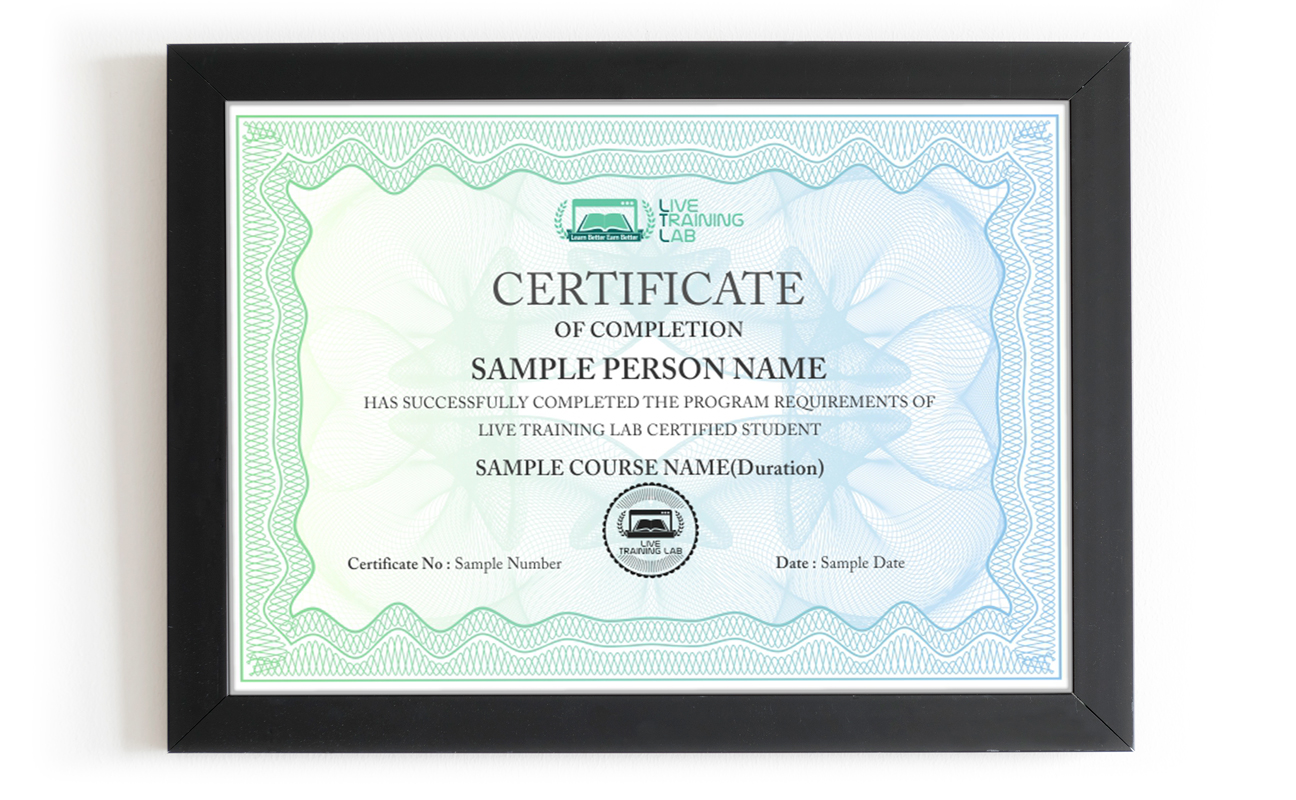
You can share your Certificate in the Certifications section of your social profile, on printed resumes, CVs, or other documents.
CURRICULUM
- Welcome
- Using the exercise files
- Creating placeholder text
- Using the Word Interface
- Understanding the Ribbon
- Customizing the Quick Access toolbar
- Using Word’s document tools
- Using the Navigation pane to find words or phrases in a document
- Managing documents with Backstage view
- Creating a new document from a template
- Making it easy to find and open documents
- Saving a Word document for yourself or others
- Printing a document and choosing a printer
- Setting print options
- Selecting text using the mouse and keyboard shortcuts
- Rearranging text using Cut, Copy, and Paste
- Undoing and redoing actions
- Finding and replacing text
- Understanding fonts
- Working with fonts
- Applying basic formatting
- Changing the case of text
- Using text effects and adding impact to a document
- Aligning and justifying paragraphs
- Changing line spacing
- Using indents and setting tabs
- Creating a bulleted or numbered list
- Keeping text together through page breaks
- Applying shading and borders to paragraphs
- Power formatting with styles
- Changing a document’s theme
- Changing style sets, color sets, fonts, and paragraph spacing
- Applying Quick Styles and clearing formatting
- Creating a Quick Style set
- Using the Navigation pane with styles
- Easily creating a table of contents
- Restricting formatting to a selection of styles
- Creating a multilevel list using styles
- Creating a table to organize text
- Converting text to tables
- Formatting tables for readability
- Adding and removing columns
- Sorting table data
- Merging, splitting, and formatting cells to create a form
- Converting a table to text
- Using Quick Tables
- Inserting an Excel table for calculations and charts
- Illustrating documents with pictures, shapes, and clip art
- Positioning, sizing, and cropping graphics
- Wrapping text around graphics
- Laying out text and graphics with a table
- Adjusting brightness, contrast, and sharpness of photos
- Applying special effects to graphics
- Applying styles to graphics
- Illustrating with charts: Inserting a chart from Excel
- Illustrating with WordArt
- Illustrating with diagrams: Using SmartArt
- Illustrating with screenshots: Capturing screenshots from your computer
- Understanding building blocks
- Numbering pages and applying headers and footers
- Creating and saving Quick Parts
- Using text boxes for document design
- Adding cover pages and blank pages
- Creating and saving custom headers and footers
- Setting page margins, page orientation, and paper size
- Inserting sections to organize a document
- Using watermarks, page borders, and colors
- Using columns
- Checking spelling and grammar
- Setting proofing and AutoCorrect options
- Using the Thesaurus and Research and Translation tools
- Tracking changes and showing markup
- Accepting and rejecting changes
- Comparing and combining documents
- Coauthoring documents with SharePoint
- Trouble-free document sharing
- Emailing a document
- Saving a document to a Windows Live drive
- Saving to SharePoint and sharing a document link
- Using Word on the web
- Blogging with a document
- Finalizing and password-protecting a document
- Restricting editing for all or part of a document
- Digitally signing a document
- Changing Word options
- Customizing the Ribbon
- Assigning a macro to the Ribbon
- Creating and playing a macro
Batches, Timings and the 4-Week Plan
The Microsoft Word course runs for 4 weeks, with live sessions on a set weekly schedule. Morning, afternoon and evening batches are available, so office staff and students can both find a slot that works.
Week one covers the interface, typing, editing and basic formatting. Week two moves into styles, headings, page setup and long-document structure. Week three is tables, images, SmartArt and layout. Week four brings in mail merge, track changes, review tools, document protection and sharing.
Classes are taught in English, Urdu or Hindi, whichever you pick when you enrol. Practice files come with each week and you work on them during class rather than being handed homework and left alone with it. New batches start regularly, so message us for the next start date and the slot you want.
Why a Live Class Beats a Video Tutorial
Watching someone else format a document always looks easy. Doing it on your own file at eleven at night, with a header that will not stay put, is a different thing entirely.
In a live class you can stop the trainer, show your screen, and get the real cause explained while the mistake is still in front of you. That back and forth is what fixes habits. You also get answers to the awkward questions nobody types into a search bar, like why a file looks different on someone else computer, or how to clean up a document somebody else made a mess of.
Across 4 weeks that adds up to skills you keep using. Trainers give feedback on the documents you build, point out what an employer would notice, and push you towards the quick way instead of the long way.
Why Choose LiveTrainingLab for Live Word Training
In high demand, many invest significantly in courses like Introduction to Microsoft Word 2016 for essential editing and formatting, working with tables, and lists. Despite sincere efforts, most face barriers to success. What we keep hearing from students is simple. Reading PDFs and clicking through quizzes teaches nobody Word, because there is no one there to say why your table split across two pages or why your headings will not build a contents list. Students express frustration with a lack of practical tasks and on-the-spot issue resolution. To address this, our Microsoft Word course emphasizes practical application, guiding you to become proficient in document editing and formatting, ensuring real-world skills development with expert guidance. Say goodbye to ineffective cramming and hello to a practical, career-oriented learning experience.
Pick your Microsoft Word trainer carefully. Ask who is teaching the session, how many people share a batch, and whether you get to work on your own file while the class is running. A trainer who can look at your screen and correct you mid-exercise is worth far more than a big-sounding promise. Look for an instructor who meets the following criteria for your guaranteed success:
- Up-to-Date Material: Ensure the course offers updated training material, including a student guide, manual, lab resources, and a flash drive, all curated by an experienced team.
- Comprehensive Training: Opt for an instructor who provides complete course coverage, including essential editing, formatting, and working with tables and lists in Microsoft Word 2016.
- Multilingual Support: Confirm that the course offers complete instruction in both English and Urdu languages for a more accessible learning experience.
- Online Remote Access: Choose a course that provides online remote access software, enabling you to practice and apply your skills in a virtual environment.
By selecting an instructor who satisfies these criteria, you can confidently take your first step toward success in mastering Microsoft Word 2016 without falling prey to scams.
No more blind trust — choose Live Training Lab as your premier option! Experience our comprehensive course, “Introduction to Microsoft Word 2016,” featuring live training on a platform equipped with a student guide, manual lab, and a flash drive for hands-on examples. Our qualified and experienced instructors use modern teaching methods, ensuring practical learning.
We have been teaching live online classes for years, and students join us from Pakistan and from abroad. Rather than throwing numbers at you, we would rather you judge us on a trial session: sit in on a live class, watch how the trainer handles questions, and see whether the pace suits you before you pay for the full 4 weeks. Ask about batch size while you are there, since a small group is the whole point of learning live. Join us in embracing success with a proven track record in today’s dynamic world.
LTL experts have identified a significant global challenge:
- Plenty of people live with a disability that makes travelling to a physical classroom hard, and a live online class removes that trip completely.
- Others simply feel too shy to speak up in a room full of strangers, so questions go unasked and small gaps quietly turn into big ones.
- Many individuals in this group face limitations in physically joining leading companies, contributing to poverty, especially in Pakistan.
We invite them to enroll in the “Introduction to Microsoft Word 2016” course, providing an opportunity to become proficient in document editing and formatting, working with tables and lists, and forging a path toward becoming a skilled professional.
As a trusted name among leading national and international IT enterprises, Live Training Lab values action over mere words. Our pride lies in our qualified staff with extensive industrial experience.
Rest assured, we back our commitment with a 100% money-back guarantee through McAfee secure payment. If we fall short of delivering what we promise, your investment is protected.
To overcome this hurdle, our dedicated training instructors have invested significantly in advanced resources. Our trainers teach the Microsoft Word course in English, Urdu or Hindi, so you pick whichever one you think in. Sessions are live and scheduled, with morning, afternoon and evening batches to fit around work and university. Tell us the language and slot you want when you enrol and we will place you in a batch that matches. Nothing here is pre-recorded. This initiative is a breakthrough, particularly in Pakistan, aiming to empower individuals with diverse linguistic backgrounds to access and excel in the course content.
LiveTrainingLab runs its Word classes live online, with remote access so your trainer can see the file you are working on. That means a mistake gets caught while you are still making it. You are not sending screenshots at midnight and waiting until tomorrow for a reply.
- Via remote viewing and control software our lab instructor monitor your lab work and on-spot respond to any issue during exercise.
- You never feel embarrassment while asking any question to your instructor in any exercise as you feel while sitting in an actual class with other students physically.
- They apply effective teaching methodologies according to your IQ level and through this two ways audio and video allows a good exchange of questions and answers as real time actively.
LiveTrainingLab is proud of the office staff, students and job seekers it has trained in Word. When you finish the 4-week Microsoft Word course, which covers essential editing and formatting, tables and lists, mail merge and long report layout, we hand over the following. All of it comes with the course, not as a paid extra, and you keep every practice file you built during class.
- Live-paid projects
- Free course training Material
- High Designation jobs in leading IT industries world-wide
Besides keeping our fees reasonable, we want people in Pakistan and elsewhere to walk out able to produce a clean report, a proper CV and a merged letter run without asking anyone for help. That is the point of the course, not a certificate on the wall.
Every student gets treated like family here, which mostly means nobody is left stuck on an exercise while the rest of the class moves on. Fees are kept affordable, and if cost is a real problem, talk to us before you enrol rather than dropping out halfway. The aim is that you finish the 4 weeks confident with Word, whether you need it for an office job, university work or your own business.
A laptop or desktop with Microsoft Word installed works best, since you will be practising while the class runs. Normal home broadband or a decent mobile connection is enough to join the live session on Zoom with audio and screen sharing. A headset helps, and a webcam is useful but not compulsory. If your connection drops mid-class, message your trainer and they will bring you back up to speed.
Let your trainer know before the class if you can. Missed topics are covered again at the start of the next session, and you can also sit in on the same topic with another running batch at no extra cost. The practice files for that week are shared with you either way. Since the course is 4 weeks and each week builds on the last, we do ask you not to make a habit of it.
₨32,000.00₨16,000.00