
- Create Professional Slides for Office & Business Work
- Design Attractive Presentations Without Design Skills
- Learn Animations, Transitions & Visual Effects
- Add Charts, Images & Videos to Explain Ideas Clearly
- Improve Your Presentation & Speaking Confidence
- Create Business, Academic & Client Presentations
- Work on Real Presentation Projects During Training
- Stand Out in Jobs & Office Work with This Skill
Microsoft PowerPoint Training Course.

Master PowerPoint & Deliver Professional Presentations
Live Online Training to Design Slides, Present Ideas & Improve Your Communication Skills for Jobs & Business
COURSE DESCRIPTION
What Is the Microsoft PowerPoint Course About?
PowerPoint is a visual and graphical tool used for creating presentations and slides. It also allows you to create, view and present slides shows that combine text, shapes, pictures, animations, videos, graphs, charts and much more. Looking for a PowerPoint training course you can join without leaving home? Every class here is live and online, so you sit with your trainer on camera, build slides while the session runs, and get your questions answered on the spot instead of waiting a day for a reply.
Whether you have never opened PowerPoint or you already build decks at work, the course starts at your level and takes you up to advanced slide design across 4 weeks of live sessions.
This is a hands-on course, so you learn by making presentations in Microsoft PowerPoint during the live class, not by watching someone else do it. Your trainer looks at your slides as you build them and corrects the small habits that make a deck look untidy.You cover the everyday work first: creating, saving and running a presentation, formatting text and shapes, and adding pictures, audio and video where they actually help. After that come the tools most people skip, like the Outline tab for planning your story, Slide Sorter for reordering a long deck, Presenter View for delivering with your notes in front of you, and clean handouts for printing. Each topic is practised in the live session while your trainer watches your screen.
LiveTrainingLab PowerPoint Course Goals
PowerPoint has become a daily tool in office work. Sales pitches, client updates, monthly reports, university projects and training sessions all run on slides, and the person who can put a clear deck together quickly gets noticed. That is the skill this live course is built around. If you are thinking about joining our PowerPoint course and you are not sure what it covers or whether it suits your level, here is a plain answer. The 4-week plan runs from editing and formatting through tables, charts and animation to final delivery, and you practise each part live with your trainer.
Here is a short walk through the course so you know exactly what you are signing up for.
Build a Real PowerPoint Foundation, Step by Step
You start with the basics of Microsoft PowerPoint and move up to advanced formatting, charts and animation over 4 weeks. Each live session gives you a slide task to finish while the trainer is still with you, so mistakes get caught the same day. Batches run at a fixed time, and you join from home.
Get Your Certificate After the 4 Weeks
You finish with a LiveTrainingLab certificate for the PowerPoint course, issued once you complete the 4 weeks and the final assessment task. More useful than the certificate is the folder of presentations you build during class, which you can show in an interview or send to a client.
Slides you can show in a job interview
Practice files from every live session
A final assessment task to prove what you learned
Use PowerPoint at Work and in Interviews
Good slide work shows up in office roles of every kind, from sales and marketing to admin, teaching and management. By the end of the 4 weeks you can turn a rough set of notes into a presentation that reads well on screen, holds a room, and does not fall apart when someone asks for a change five minutes before the meeting.
What You Will Learn in These Live Classes
- Getting started with PowerPoint
- Developing a PowerPoint presentation
- Performing advanced text editing
- Adding graphical elements, tables, and charts to a presentation
- Modifying objects in a presentation
- Preparing to deliver a presentation
How Our Live PowerPoint Classes Work
Every class is taught live by a trainer, at a fixed time, with a small batch. You open PowerPoint on your own machine and build the slide along with the session, so the work happens while someone is there to correct it. Share your screen and the trainer can see exactly where a shape jumped or a font changed on its own.
Questions get answered as they come up, in English or Urdu. Each session ends with a short task, and the next one starts by looking at what you produced. Over 4 weeks that adds up to a set of finished presentations rather than a folder of notes you never went back to.
Why a Live Class Beats a Recorded Course
Recorded lessons are fine until something goes wrong on your screen. Then you are stuck, and the video keeps playing. A live class puts a person on the other side who can look at your file and tell you what happened.
There is also the matter of showing up. A fixed class time and a trainer expecting your task is the reason most students actually finish. You get feedback on your own slides, not a generic example, and you can push back and ask why a layout looks wrong. That back and forth is what turns PowerPoint from something you have used into something you are good at.
Course Schedule
| Start Date | Time | Seats Left | Price | |
|---|---|---|---|---|
| 26-Oct-26 : Mon | 12:00 PM | 5 | 15999 Rs | Register Now |
| 27-Oct-26 : Tue | 02:00 PM | 1 | 15999 Rs | Register Now |
| 28-Oct-26 : Wed | 04:00 PM | 5 | 15999 Rs | Register Now |
| 29-Oct-26 : Thu | 06:00 PM | 2 | 15999 Rs | Register Now |
| 30-Oct-26 : Fri | 08:00 PM | 5 | 15999 Rs | Register Now |
| 31-Oct-26 : Sat | 10:00 PM | 1 | 15999 Rs | Register Now |
| 01-Nov-26 : Sun | 10:00 AM | 1 | 15999 Rs | Register Now |
We provides this course in following city of Pakistan
- Karachi
- Islamabad
- Rawalpindi
- Azad Kashmir
- Lahore
- Sialkot
- Gujranwala
- Multan
- Gujrat
- Faisalabad
- Sahiwal
and other major cities in Pakistan.


100% online courses
Start instantly and learn at your own schedule.

Flexible Schedule
Set and maintain flexible deadlines.

Learn the latest skills
with on-demand training and development programs

Shareable certificate
Earn a Certificate upon completion
Shareable on Social Media
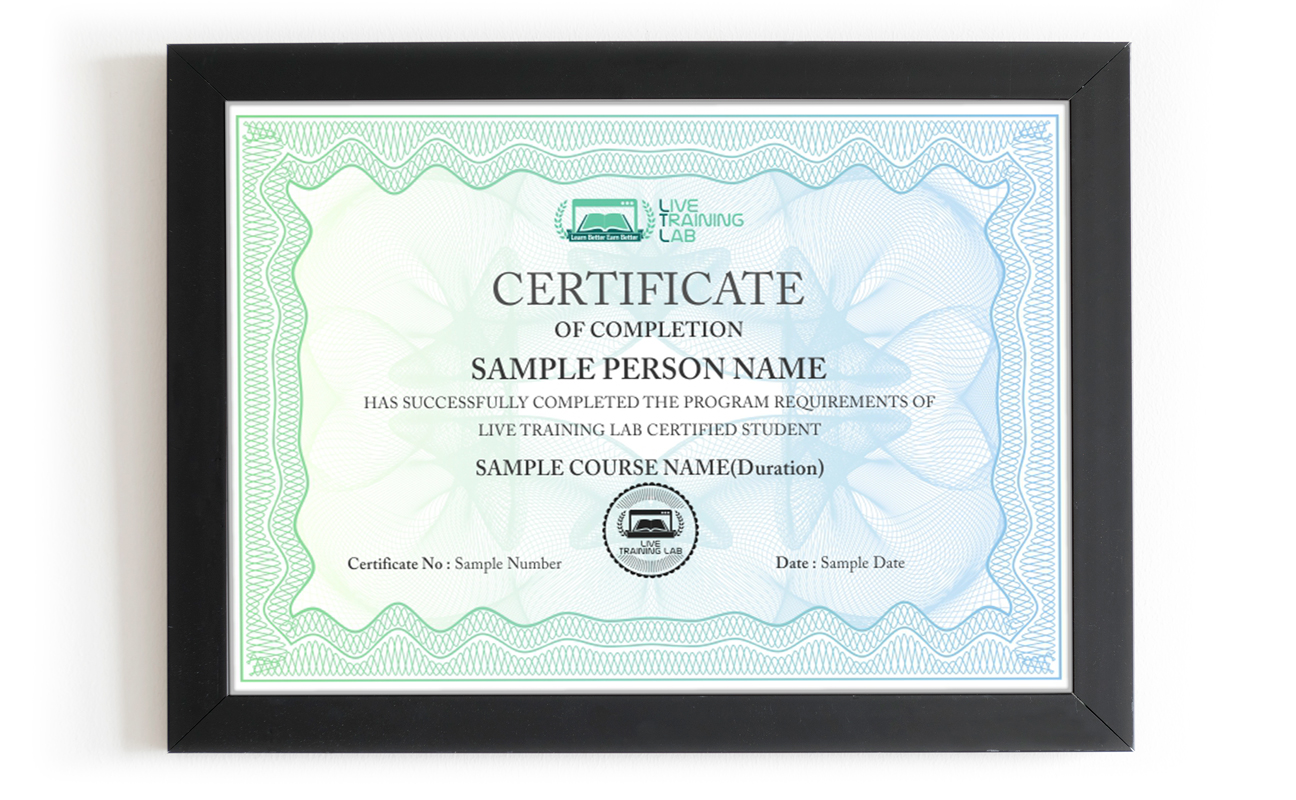
You can share your Certificate in the Certifications section of your social profile, on printed resumes, CVs, or other documents.
CURRICULUM
- What is PowerPoint?
- About Slides
- The Start Screen
- The PowerPoint 2016 User Interface
- The Ribbon
- Contextual Tabs
- Dialog Box Launchers
- The Quick Access Toolbar
- The Slides Pane
- The Status Bar
- The Backstage View
- The Default PowerPoint Presentation
- Text Placeholders
- The AutoCorrect Feature
- The Save Command
- Using Help
- Using Tell Me
- Accessing Advanced Help Options
- Selecting a Presentation Type
- Templates
- The Open Category in Backstage View
- Building a Presentation
- Inserting a Slide Layout
- Slide Layout
- Types of Slide Layouts
- Slide Size
- Themes
- Theme Variants
- Theme Components
- Background Styles
- The Format Background Task Pane
- Text Boxes
- Text Selection Methods
- The Mini Toolbar
- Cut, Copy, and Paste Options
- The Clipboard
- The Paste Special Command
- Galleries
- The Live Preview Feature
- Presentation Views
- Color View Options
- The Slide Show View
- Slide Show Options
- The Magnifier
- The Slide Navigator
- Presenter View
- The Protected View
- Working with Multiple Presentation Windows
- Character Formats
- The Font Dialog Box
- Creating WordArt
- Converting Text to SmartArt
- The Format Painter
- The Replace Fonts Option
- Bulleted Lists
- Numbered Lists
- Horizontal Text Alignment
- Vertical Text Alignment
- The Format Shape Task Pane
- The AutoFit Feature
- Text Box Margins
- Spacing Options
- Formatting Text as Columns
- Text Direction Options
- Clearing Formatting from Text
- Using Rulers
- Text Box Formatting Options
- Shape Fills
- Shape Outlines
- The Eyedropper
- Shape Effects
- Setting the Default Text Box
- Inserting Images
- Local Pictures
- Online Pictures
- The Photo Album Feature
- The Screenshot Tool
- The Screen Recording Tool
- Converting Pictures to SmartArt
- Inserting Shapes
- The Drawing Tools – Format Contextual Tab
- Resizing Shapes
- Customizing Shape Fill, Outline, and Effects
- The Merge Shapes Feature
- Edit Points
- Setting the Default Shape
- Inserting WordArt
- Editing WordArt
- Formatting WordArt
- Object Selection Methods
- Image Cropping
- The Picture Tools – Format Tab
- The Remove Background Feature
- Object Resizing Methods
- Object Scaling Methods
- Object Orientation Options
- Image Compression Options
- Changing the Picture
- Resetting the Picture
- The Format Picture Task Pane
- The Set Transparent Color Option
- Picture Formatting Options
- Group Objects
- The Grouping Feature
- Alignment Commands
- Object Order
- Guides and Gridlines
- Built-In Animation Effects
- The Animation Painter Feature
- Table Creation Options
- Table Navigation Methods
- Adding and Deleting Rows and Columns
- Resize Rows, Columns, and Tables
- Merging and Splitting Cells
- Distributing and Arranging Rows and Columns
- Aligning Tables
- The Table Tools Contextual Tabs
- Table Styles
- Table Fill and Border Options
- Insert a Table from Other Microsoft Office Applications
- Inserting a Chart and Adding Data
- Editing Chart Data
- Chart Types
- Formatting a Chart
- Quick Chart Commands
- Creating a Chart with Microsoft Excel Data
- Selecting and Formatting Chart Elements
- Arranging Chart Elements
- Specifying a Precise Position for the Chart
- Resizing Chart Elements
- Applying Effects to a Chart
- Applying Quick Styles to Shapes
- Applying a Border
- Creating a Chart with Microsoft Excel Data
- AutoCorrect Feature Options
- The Spell Checker Feature
- The Insights Pane
- The Thesaurus
- Checking Compatibility
- Checking Accessibility
- Setting Effect Options
- Customizing Transition Timing
- Adding a Sound
- Previewing Transitions
- The Print Command
- Printing Selected Slides
- Full Page Slides
- Handouts
- Outlines
- Notes Pages
- Collecting Together Reference Material
- Final Assessment Task
Batches, Timings and the 4-Week Plan
The PowerPoint course runs over 4 weeks. Week one covers the interface, slide layouts, themes and text formatting. Week two moves into shapes, images, WordArt and object handling. Week three brings tables, charts and animation, including pulling data across from Excel. Week four is about delivery: transitions, Presenter View, handouts, printing and the final assessment task.
Batches run morning and evening so students and working people can both find a slot. Timings are confirmed when you enrol, and your trainer stays reachable through the course if you get stuck between sessions.
Who This PowerPoint Course Is For
Office staff who put together weekly reports and want them to look like someone cared. Sales and marketing people who pitch to clients. Teachers and trainers building lesson decks. Students facing a final year presentation. Freelancers who need to send a client something clean.
No design background is needed, and no previous PowerPoint course either. If you can open a file and type into it, you are ready for week one. If you already build decks and want the faster, tidier way of doing it, tell the trainer at the start and the early sessions get adjusted to your level.
Why Choose LiveTrainingLab for PowerPoint
Plenty of people try to pick up PowerPoint from recorded videos, PDFs and downloaded files. It looks cheap and flexible, and then the folder sits untouched after week one. Nobody is waiting for your work, nobody points out the spacing that is off, and there is no set day when the next lesson happens.
When we ask learners why the self-study route did not work for them, the answer is usually some version of the same thing.
Reading a PDF or a quiz never built the habit. It turned into memorising steps instead of actually building a slide.
With a recording there is nobody to ask when a slide will not behave, and no task that gets checked. A live class fixes both. You share your screen, your trainer sees the problem while it is happening, and you fix it in the same session before moving to the next exercise. That is how PowerPoint actually sticks.
So the safer route is a live PowerPoint class taught by a trainer who works with presentations every day, watches your screen while you build, and sets the pace to suit you. In our sessions your trainer will:
- Start at your level, from the very basics or from wherever your office work already needs you to be.
Give you a practical slide task in every session and correct your mistakes on the spot, so the skill actually stays with you.
Take your questions in English or Urdu, so you can ask freely and leave the session with the concept clear rather than half understood.
There is no shortage of people selling PowerPoint training online, and the quality swings wildly from one to the next. Before you pay anyone for a PowerPoint course, ask a few plain questions about the class itself. Who teaches it, is it live or a playback, how big is the batch, what do you get to keep, and what happens if you miss a session. Here is where we stand on each of those:
-
Up to date PowerPoint practice files and a student guide that stay with you after the course ends.
- Live sessions taught in English or Urdu, whichever one you follow more easily.
- A course certificate once you finish the 4 weeks and the final assessment task.
- Fees and timings told to you upfront, with nothing added later.
A fixed class schedule and a trainer you can reach through the whole course.
The course runs as a live class with a student guide and ready-made practice files, so you always have something in front of you to work on. The exercises are put together by trainers who build presentations for real clients, not lifted from a generic manual. We are a Pakistan-based team, and students join our live batches from home, from the office and from other countries. What we offer is plain enough: a live trainer on camera, a small batch, and slide work you actually finish inside the session.
Two things we hear often from students:
- Many learners simply cannot travel to a classroom every week.
- Others hesitate to ask questions in front of a full room.
A live online class removes both problems. You join the session from wherever you are, with your camera on or off, and you can type a question in the chat if you would rather not speak. The trainer answers it in the same session, so nothing gets carried over to next week.
-
You join from home, on camera or with your mic only, whichever suits you.
You can ask the trainer to repeat a step as many times as you need.
Rather than asking you to take our word for it, LiveTrainingLab lets you sit in on a live session before you enrol. You see how the trainer teaches, how the batch is handled, and how questions get answered in real time. If it does not feel right for you, you have lost nothing but an hour.
Language stops a lot of capable people from getting anywhere with software training. The skill is there, the English is not, and the course moves too fast to follow. So our trainers teach the PowerPoint course in English or Urdu, and switch between the two inside a session when that helps a student. Ask your question in whichever language you think in. Batch timings are set when you enrol, and the full course runs over 4 weeks.
LiveTrainingLab runs every class with screen sharing, so the session works like sitting beside your trainer. You build the slide, the trainer sees it happening, and corrections come while the file is still open in front of you.
Your trainer watches your practice file during the exercise and answers the moment something goes wrong, instead of leaving you stuck until the next class.
Batches stay small, and you can ask your question in chat or on mic, so there is no waiting for a turn and no worry about holding the class up.
Trainers set the pace from what they see on your screen, and because audio and video run both ways, questions and answers go back and forth through the whole session rather than piling up at the end.
LiveTrainingLab students walk away with more than a certificate at the end of the 4 weeks. Here is what comes with the course:
Real presentation briefs to practise on
Course material and practice files, free
Guidance on presenting your work in interviews
We want good PowerPoint skills to be within reach of ordinary students and working people, not priced like a corporate workshop. The fee is kept low without cutting the live sessions short or packing the batch. Every student gets the same attention from the trainer, whichever batch they sit in. Ask us about current fee options when you enquire, and we will tell you what the 4-week course costs before you commit to anything.
It is live from start to finish. Your trainer teaches in real time, watches your shared screen while you build slides, and answers questions in the same session. Nothing is a playback of an older batch.
A laptop or desktop with PowerPoint installed, a steady internet connection and a headset. Classes run on Zoom, so the app or a browser is enough to join. If your connection drops mid-session, message your trainer and you can catch up on the part you missed.
₨32,000.00₨16,000.00